

Heading to work or a holiday adventure? Picking up groceries or dropping off the kids? You’ll save big on every mile when you fuel up at Sinclair. As always, stack the following in-app offers with DINOPAY® and Mobile Advantage™ to maximize your savings. Go DINO®!
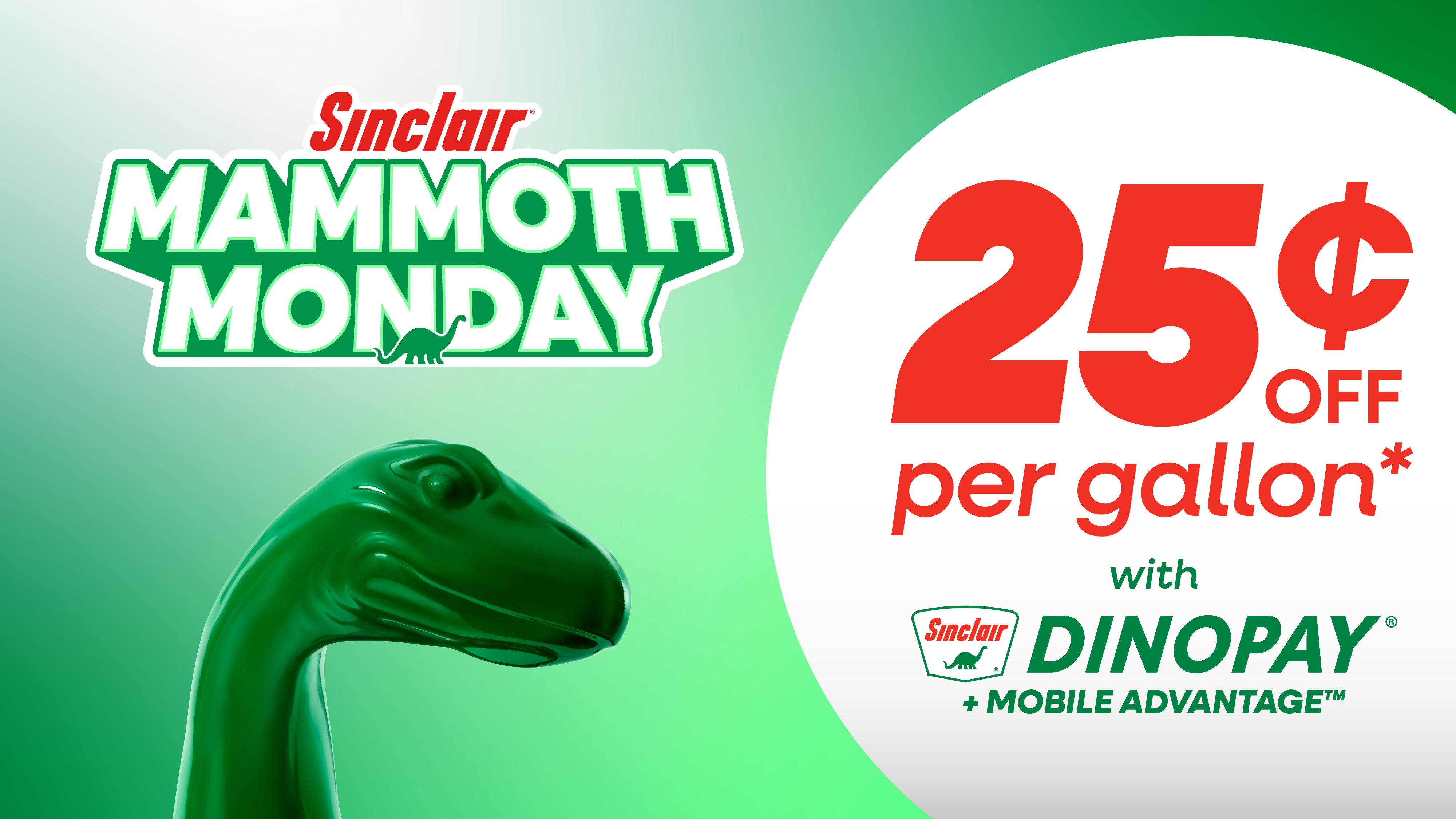
Savings BIGGER than DINO®
Mondays are MAMMOTH. Because when you start your week by filling up at Sinclair®, you’ll save a ground-shaking 25¢ a gallon with DINOPAY® and Mobile Advantage™. Why fill up anywhere else, any other day?
*Valid only on Mondays at participating Sinclair® locations. Discount applies to the first 35 gallons purchased or the first $175 ($150 on Mobile Advantage™) of fuel purchased per transaction, whichever occurs first, when paying with DINOPAY®. Limit one coupon per DINOPAY® member per week. No cash value. Offer may be modified or discontinued at any time. Void where prohibited. See website for details.
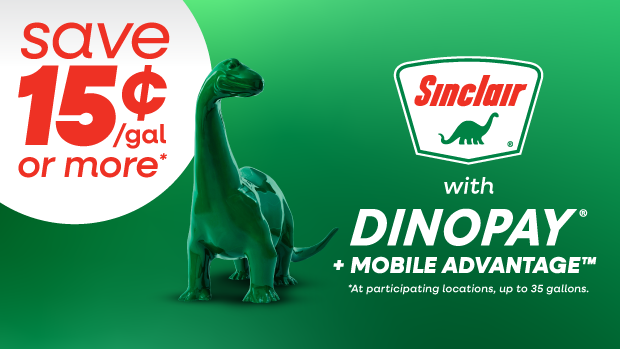
Save 15¢/gal or more with Mobile Advantage™
DINOPAY® makes it easy to save every time you fill up at Sinclair®. Maximize your savings by selecting Mobile Advantage™ as your payment method. Save an additional 5¢/gal on top of your everyday 10¢/gal DINOPAY® discount for a total of 15¢/gal.
*Valid at participating Sinclair® locations. Discount applies to the first 35 gallons purchased or the first $175 ($150 on Mobile Advantage™) purchased per transaction, whichever occurs first, when paying with DINOPAY® and Mobile Advantage™. Offer may change or end at any time. Void where prohibited. See app for details.
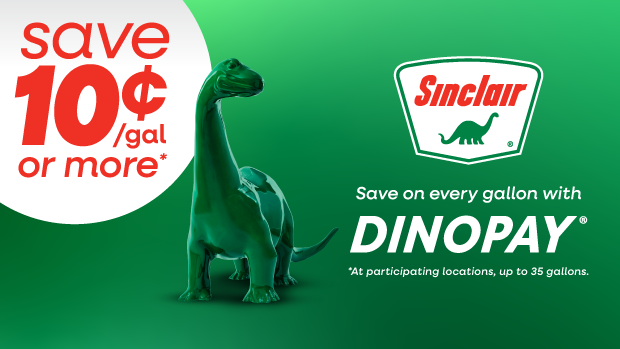
Save 10¢/gal or more on every fill-up with DINOPAY®
Wherever the road takes you, DINOPAY® helps you get more out of the journey. Save at least 10¢/gal* on every fill-up when you add a payment method to your DINOPAY® wallet. Stack other offers to save even more. Then spend more on the things that make the trip fun.
*Valid at participating Sinclair® locations. Discount applies to the first 35 gallons purchased or the first $175 ($150 on Mobile Advantage™) purchased per transaction, whichever occurs first, when paying with DINOPAY®. Offer may change or end at any time. Void where prohibited. See app for details.
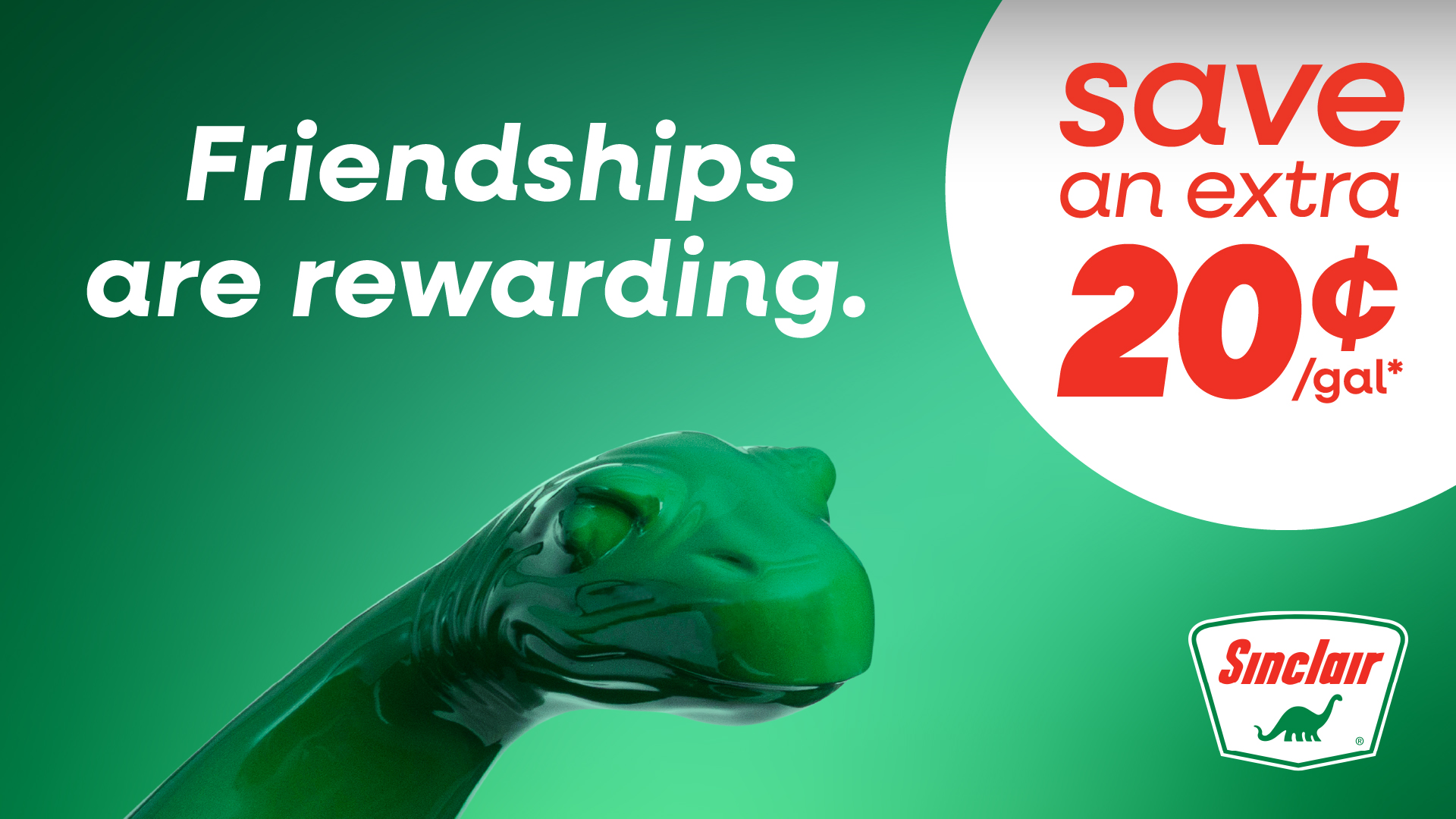
Refer 5 friends to DINOPAY® and you’ll save an extra 20¢ per gallon
You love how DINOPAY® saves you money every time you fill your tank. Why not share the love with five of your besties? After all, friends don’t let friends overpay at the pump. Here’s what you do: Send a DINOPAY® code to five people lucky enough to be your friend. When they all activate DINOPAY® and make their first qualifying transaction, you’ll get an in-app coupon to save 20¢ a gallon on your next fill-up. See? Friendships really are rewarding!
*Valid at participating Sinclair® locations. Referrer receives 20¢ off/gallon on one fuel transaction, up to 35 gallons or the first $175 ($150 on Mobile Advantage™) of fuel purchased in a single transaction, whichever occurs first, when a referred new DINOPAY® member completes five qualifying fuel transactions totaling at least 40 gallons using DINOPAY®. Discount must be redeemed using DINOPAY®. No cash value. Offer may change or end at any time.
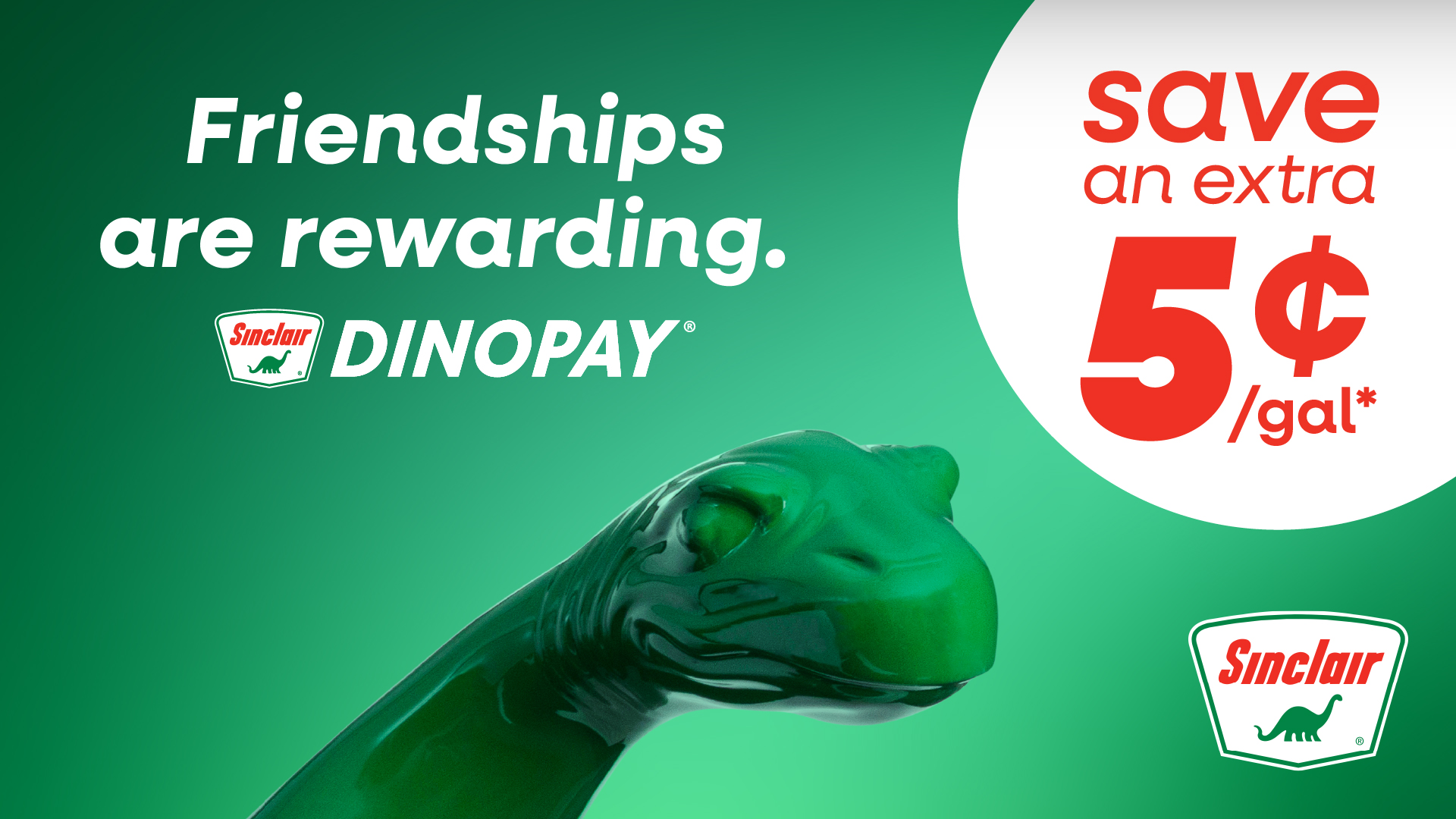
Save an extra 5¢ per gallon when your friend refers you to fill up with DINOPAY®
Want to save cash every time you fill your tank? It’s easy! Just use the DINOPAY® mobile app from Sinclair®. With DINOPAY® you can:
- Save 10¢/gal every time you fill up
- Save 15¢/gal with Mobile Advantage™
- Stack your savings with limited-time promotional offers
- Find the nearest Sinclair® station
- Enjoy secure mobile payment at the pump or in the store
As a special introductory offer, you can save an EXTRA 5¢/gallon on top of your everyday savings. So download DINOPAY® and start saving.
*Valid at participating Sinclair® locations. New DINOPAY® members who enroll through a valid referral and purchase at least 10 gallons of fuel will receive $0.05 off per gallon on one fuel transaction. Discount applies to the first 35 gallons or the first $175 ($150 on Mobile Advantage™) of fuel purchased in a single transaction, whichever occurs first. Discount must be redeemed using DINOPAY®. No cash value. Offer may change or end at any time.
HOW TO REDEEM COUPON OFFERS
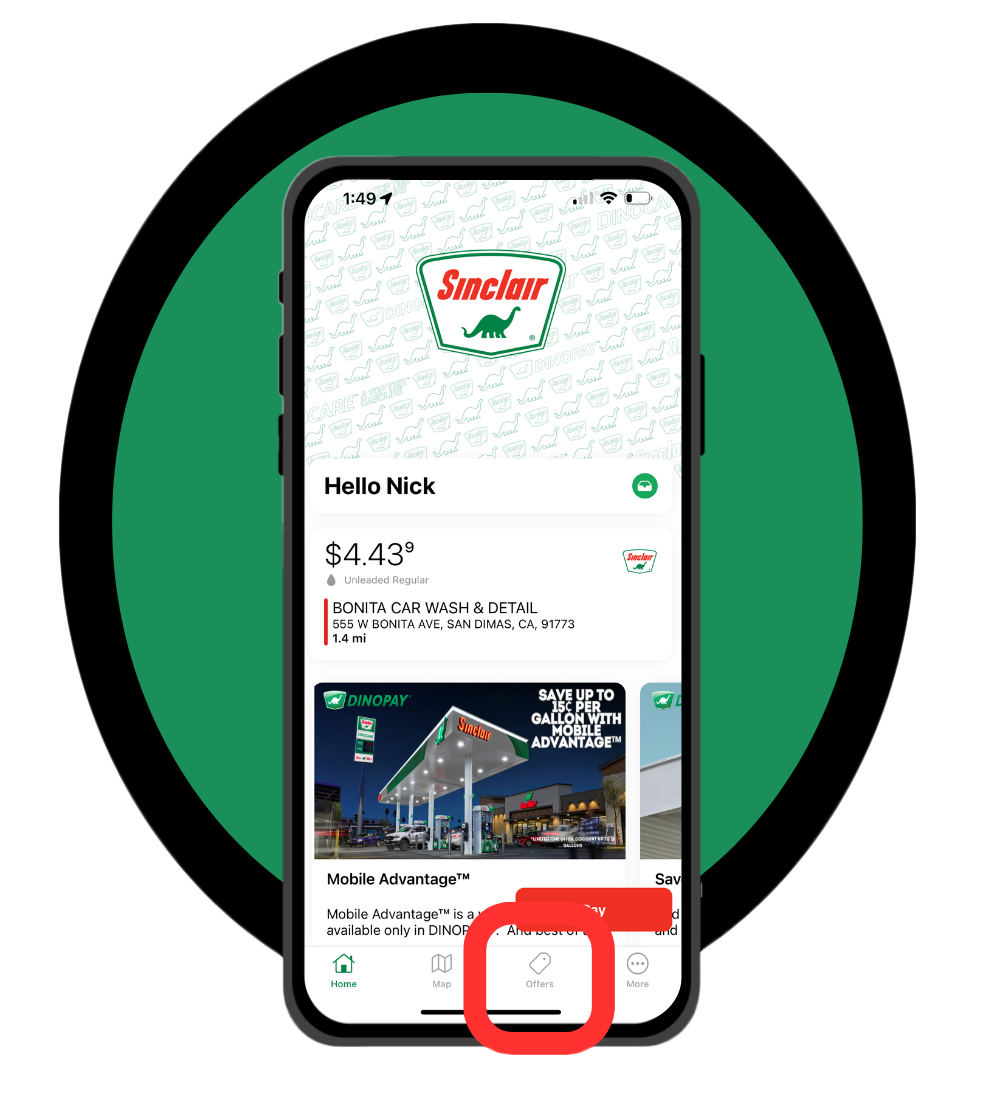
If you already have a DINOPAY® account, open DINOPAY® and tap the “Offers” tab.
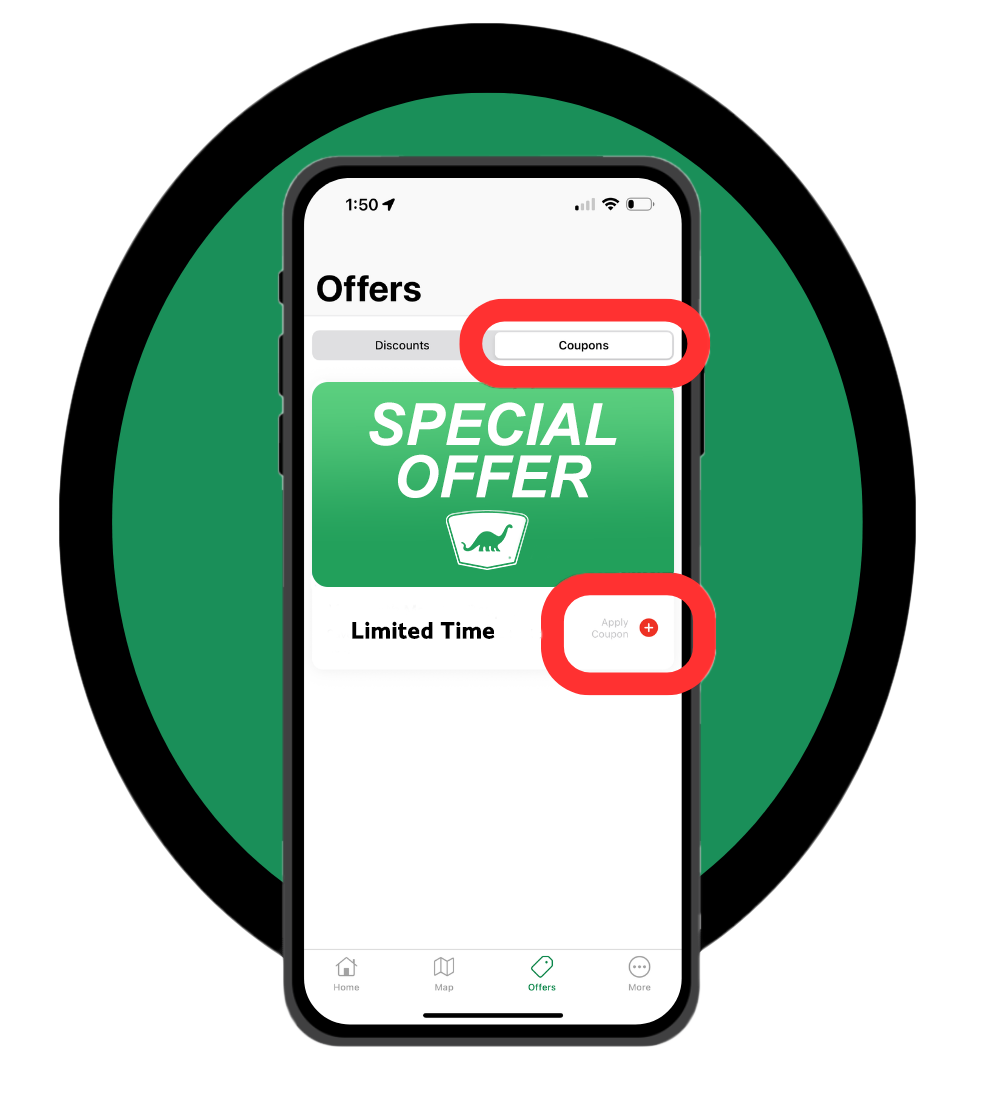
Activate your offer.
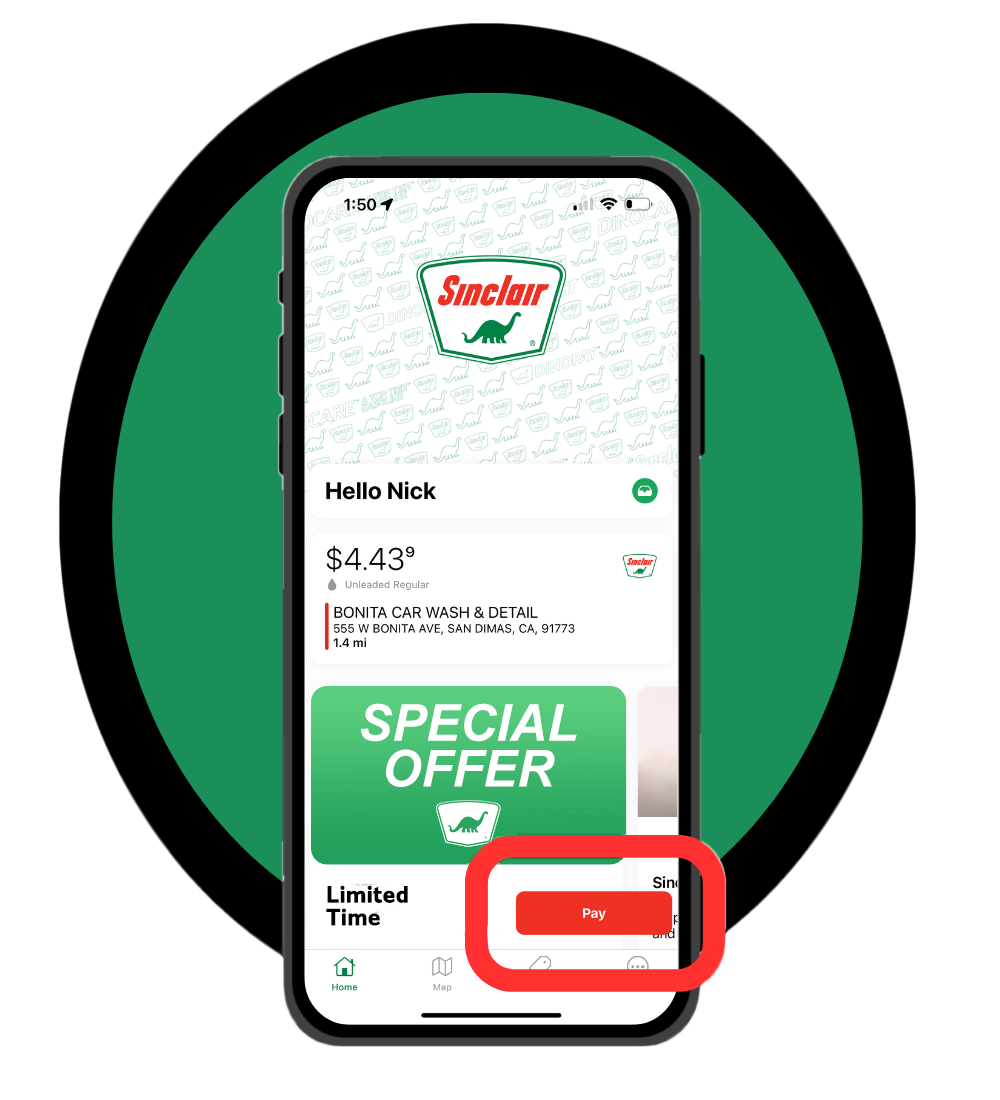
Pay with DINOPAY®. Your savings will apply when the coupon is activated.
Download our DINOPAY mobile app today:
- Save 15¢/gal or more with Mobile Advantage™
- Find nearby Sinclair stations instantly
- Secure mobile payment
- Track your purchases and total savings


FAQs
How do I verify that I’m on the most up-to-date version?
Visit the Apple App Store or Google Play and search the keyword “DINOPAY,” then tap “Download” or “Update” to ensure you have the latest version.
Is cellular or wireless data required to use the app?
Yes, cellular data is required to use the app.
Is a Wi-Fi connection available to use the app at each site?
No, Sinclair gas stations do not provide public Wi-Fi. The app runs off personal cellular data, rather than Wi-Fi. A weak Wi-Fi signal can interfere with the functionality of the app. If you are having connection issues at any Sinclair gas station, try turning OFF Wi-Fi on your device to avoid potentially picking up a weak signal.
Why does DINOPAY need my mobile device location?
The GPS setting on your mobile device helps locate DINOPAY-enabled gas stations near you. Your phone’s GPS also works as a security mechanism to ensure that only the pumps at your location are activated. That’s why it’s necessary to allow DINOPAY to access your mobile device’s location service while you are using the app.
If the app does not auto-locate you, tap the map and the re-center icon (lower right corner on the map) to find a DINOPAY location near you.
Why can’t I find a gas station near me?
Sinclair continues to improve its network of gas stations across the U.S. Sometimes this means that a new gas station is opened for customers before it appears in the app. Sinclair strives to have the most accurate data available, but if you find that a particular gas station is missing or shown in the wrong place, please contact Sinclair DINOPAY support here.
How does the app use my location data?
The app uses your location data to find the gas station closest to you and to provide you with features, information, offers or other content based on your specific GPS coordinates.
How much can I save on fuel with DINOPAY?
Members can save unlimited cents per gallon in stackable discounts, on any fuel purchase up to 35 gallons. Members receive everyday savings of at least 10 cents per gallon while using DINOPAY.
When you select Mobile Advantage as your payment method, you save an additional 5 cents per gallon, for a total of 15 cents.
Do I have to select offers in the app for them to be applied to my purchase?
Yes, you need to activate the offer within the DINOPAY app. But don’t worry, it’s easy to do it right at the pump when you’re ready to fill up:
- Open DINOPAY and tap the “Offers” tab.
- Tap “Promotions” or “Coupons” to review all your offers.
- Tap “+” Add Coupon to activate your savings.
- Pay with DINOPAY. Your discount applies automatically.
Do all Sinclair locations provide the same offers?
No, it varies by location; supported offers can be seen in the Station Details.
What happens if I didn't receive the discounted offer?
If your transaction completed and the offer discount was not applied, you can contact support through the app:
- From the homepage, tap the gear icon in the upper right corner to navigate to the Settings menu.
- Tap “Help/About.”
- Provide your DINOPAY user email and registered phone number.
- Include the date of the transaction in your message.
- Allow time for support to investigate and reply to the request.
What forms of payment does the DINOPAY app accept?
You can add the following payments to your DINOPAY mobile wallet: Mobile Advantage™, MasterCard, Visa, American Express, Discover, Apple Pay and Google Pay.
How do I add a payment method to my account?
- From the app homepage, tap the Settings icon, the gear in the upper right corner.
- The Settings menu will open; tap “Payment Method.”
- Tap the “Add Payment” button.
- Tap your preferred form of payment.
- Follow the prompts to complete the process.
Why are the pay options grayed out when I select the gas station?
Gas stations that are DINOPAY-ready will show “Pay at Pump” or “Pay Inside” as bright red buttons. If those options are grayed out, that gas station is not yet able to accept DINOPAY.
Can I use DINOPAY at gas stations other than Sinclair?
No, DINOPAY can only be used to locate and purchase fuel and other items at Sinclair gas stations and convenience stores where DINOPAY is enabled.
Can I use DINOPAY to pay for auto repairs or other services?
At this time, DINOPAY may only be used to purchase fuel and convenience store items.
How can I use DINOPAY to pay for fuel at the pump?
When you arrive at the station, open your DINOPAY app. From the Home Screen > tap “Pay” and follow the prompts to select your pump. Additional guidance is available in the DINOPAY Quick Start Guide.
How can I use DINOPAY to make purchase inside the convenience store?
When you select “Pay Inside” and tap “Generate Code,” the screen will display a QR code, and the cashier will scan the code to complete your purchase.
Where is my receipt and purchase history?
In General Settings, you can select whether you’d like to receive your receipt through email, at the pump or both.
A history of your transactions is available in the History menu. Tap the Settings icon in the upper right corner of your screen, then “History.” All of the purchases you have made using DINOPAY will be displayed for that account. Receipts can be viewed and forwarded via email.
How will a DINOPAY purchase appear on my credit card bill?
Credit card transactions will appear as they normally would, just as if you had directly used a credit card to make the purchase.
Sinclair Mobile Advantage transactions will appear on your online banking statement as an automated clearing house (ACH) transaction.
How do I open a Sinclair Mobile Advantage account?
Enrollment in Sinclair Mobile Advantage is available only through the DINOPAY app. For full details on how to apply, visit our site here.
- To enroll, start from the app homepage.
- Tap the Settings icon, the gear in the upper right corner.
- The Settings menu will open; tap “Payment Method.”
- Tap the “Add Payment” button.
- Tap “Add Sinclair Mobile Advantage Account.”
- Follow the prompts to complete the process.
Is there a membership fee to use DINOPAY?
No, the DINOPAY loyalty program is completely free!
How does Mobile Advantage work?
Mobile Advantage is a digital payment option available only in the DINOPAY mobile app. Mobile Advantage is a pay-by-bank (ACH system) form of payment that is directly linked to your personal checking account. There are no bank holds or checking fees with Mobile Advantage. There are also no annual or monthly fees.
What are the benefits of using Mobile Advantage?
When you use Mobile Advantage at participating Sinclair locations, you will receive 15¢ off per gallon, up to 35 gallons per transaction. Stinker locations are eligible for an additional 10¢ per gallon, for a total of 25¢ per gallon. Sinclair reserves the right to discontinue or alter the terms of this program at any time.
Discount does not apply to the following:
- Age-restricted items including alcohol, bottle deposits, tobacco, lottery and lotto
- Postage stamps
- Sinclair gift cards; Visa, Mastercard and American Express prepaid cards; sports betting gift cards and phone cards
- Money orders
- Event tickets, stickers and passes
- Rentals and other service items
- Previous purchases
- Taxes, shipping, delivery, handling and all other fees or charges
- Where otherwise prohibited by law
Where can I use Mobile Advantage?
Mobile Advantage can only be used at participating Sinclair locations to pay at the pump or in-store.
How does Mobile Advantage payment type work?
Your personal checking account is linked to your Mobile Advantage account when you sign up / enroll. You must complete the signup / enrollment process where you will securely link your bank checking account to your DINOPAY Mobile Advantage account before it can be used.
How can I use Mobile Advantage to pay for fuel at the pump?
When you arrive at the station, open your DINOPAY app. From the Home Screen > tap “Pay” and follow the prompts to select your pump. Additional guidance is available in the DINOPAY Quick Start Guide.
How can I use Mobile Advantage to make purchase inside the convenience store?
When you select “Pay Inside” and tap “Generate Code,” the screen will display a QR code, and the cashier will scan the code to complete your purchase.
Where can I access receipts for my Mobile Advantage purchases?
Receipts for Mobile Advantage purchases can be viewed in your DINOPAY app. From the Home screen > tap “More” at the bottom right side of your screen >> Transaction History. You can also check your bank account monthly statement online or in print to see Mobile Advantage transactions that have been recorded on the personal checking account you have associated with Mobile Advantage.
How do I open a Sinclair Mobile Advantage account?
Enrollment in Sinclair Mobile Advantage is available only through the DINOPAY app. For full details on how to apply, visit our site here.
- To enroll, start from the app homepage.
- Tap the Settings icon, the gear in the upper right corner.
- The Settings menu will open; tap “Payment Method.”
- Tap the “Add Payment” button.
- Tap “Add Sinclair Mobile Advantage Account.”
- Follow the prompts to securely connect your personal checking account and authorize your Mobile Advantage account set up.
What if I don't have a checking account?
Currently, only active, personal checking accounts from US banks can be used with Mobile Advantage. Savings, money market, corporate, foreign, prepaid and other types of bank accounts cannot be used with Mobile Advantage.
How quickly will my Mobile Advantage account be ready to use?
Most personal checking accounts can be connected instantly through the signup / enrollment process. Once your Mobile Advantage account is active, select Mobile Advantage as your preferred payment method so you are always ready to save! An in-app wallet will be automatically added and available for use in your DINOPAY app.
Why is there a small deposit and a small withdrawal of a few cents in my checking?
With Mobile Advantage, your linked personal checking account information must be validated to ensure the routing and bank account numbers have been correctly added. When you’re unable to link your personal checking account through Plaid, banking information must be entered manually. There will be a small deposit and a small withdrawal to your personal checking account. Once you see these amounts in your bank account, log back into Mobile Advantage in the DINOPAY App and follow the prompts to enter those amounts. Your Mobile Advantage account is not activated until this deposit verification process has been completed.
How do I know when I can start using Mobile Advantage?
Once you have completed the setup process, you will receive email confirmation that your Mobile Advantage is ready to be used for payment. You can also go into your DINOPAY mobile app and open the Mobile Advantage section to see if it is available for use. Lastly, Mobile Advantage should be visible in your app Wallet, with the option to make it your preferred payment method.
What do I do if my Mobile Advantage isn't working?
Ensure you have completed the setup process and received confirmation that your Mobile Advantage account is ready to be used for payment. If you are still having issues using Mobile Advantage, please contact our customer service team via live chat or email us at mobileadvantage@paywithspire.com.
What if I don't want Sinclair to have my bank information?
Sinclair does not access, keep or store your bank account information. Setup is done through Pay With Spire, Inc. with your personal bank to authorize and securely connect your Mobile Advantage account to then be used for payment.
What happens if I don't have sufficient funds in my bank account?
Transactions for an ACH program like this can take a few days to hit your bank account. If your account does not have funds at the time of settlement, there will be fee(s) applied to your account that will be re-attempted for payment via electronic means. If this is not successful, your account will be suspended, and the transaction and fee amounts placed into collections. It is also possible that your bank may assess their own fee for services such as overdraft protection. Pay with Spire is not responsible for any fees incurred as a result of payments returned by your bank. Please see Section 5 of the Sinclair Mobile Advantage Terms and Conditions here.
Is there a hold on my bank account?
There is no hold on your bank account with Mobile Advantage.
Do you check my credit score when I enroll in Mobile Advantage?
There are no credit score checks required to enroll in Mobile Advantage. Use of Mobile Advantage is not based on your credit history and will not impact your credit history, if the funds in the account you associated with Mobile Advantage are sufficient to cover the purchases you make.
Will you sell or share my personal information?
Sinclair prioritizes the security of your data. We do not sell or disclose any information to a third party. The data you provide is only required for identity verification purposes. Your information is only used in the manner noted and kept in a secure environment. For more information, please refer to the Mobile Advantage Privacy Policy.
How many checking accounts can be connected to a single Mobile Advantage account?
Only one (personal) checking account can be used per Mobile Advantage account.
How do I change the checking account connected to my Mobile Advantage Pay account?
Please contact our customer service team via live chat or email us at mobileadvantage@paywithspire.com.
How do I view my Mobile Advantage transactions?
Transactions can be viewed in the DINOPAY mobile app, under “Transaction History.”
How do I cancel my Mobile Advantage account?
Please contact our customer service team at 866-466-9798.
How do I change the notification settings?
From the app homepage, tap the gear icon in the upper right corner to enter the Settings menu. Navigate to “General Settings,” then “Notifications.” Here, you can turn email receipts and push notifications “On” or “Off.”
Where can I change my password or personal identification number (PIN)?
From the app homepage, tap the gear icon in the upper right corner to enter the Settings menu. Navigate to “General Settings,” then “Security” and follow the prompts to change your login information.
Why do you need my phone number?
When you register with DINOPAY, Sinclair uses your phone number to enhance account security and assist in resetting your password by sending a message to only that device.
How is personal data used?
To see the full details of our Privacy Policy, start on the app homepage, tap the gear icon in the upper right corner to enter the Settings menu, then tap “Privacy Policy.”
How do I delete my account or withdraw consent?
To delete your account, start on the app homepage, tap the gear icon in the upper right corner to enter the Settings menu and tap “General Settings,” then “Security.” If you choose to delete your DINOPAY account, all of your information will be permanently removed, and your transaction history will no longer be available.
To withdraw consent, start on the app homepage, tap the gear icon in the upper right corner to enter the Settings menu and tap “General Settings,” then “Security.” Here, you can opt out and suspend your account. To reverse this action, you will have to log in again and opt back in.
How do I request help with the app or report an error?
To contact Support, start on the app homepage, tap the gear icon in the upper right corner to enter the Settings menu, then tap “Help/About.”
 How to Use DINOPAY
 How to Set Up Mobile Advantage
 How to Activate Promo Codes
 How to Refer a New Member
 How to Save More with Gamification
 How to Use a Coupon in the DINOPAY App